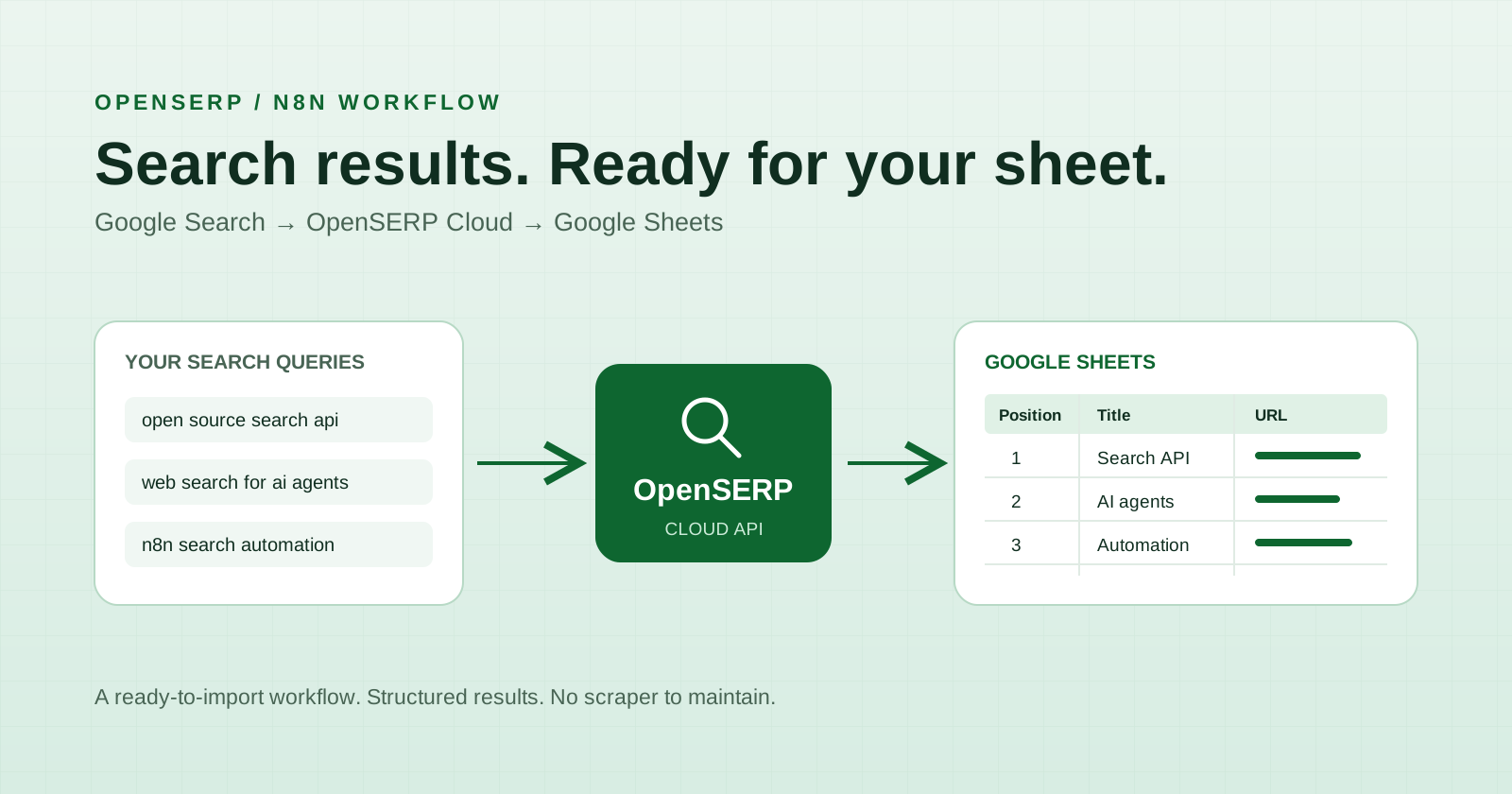
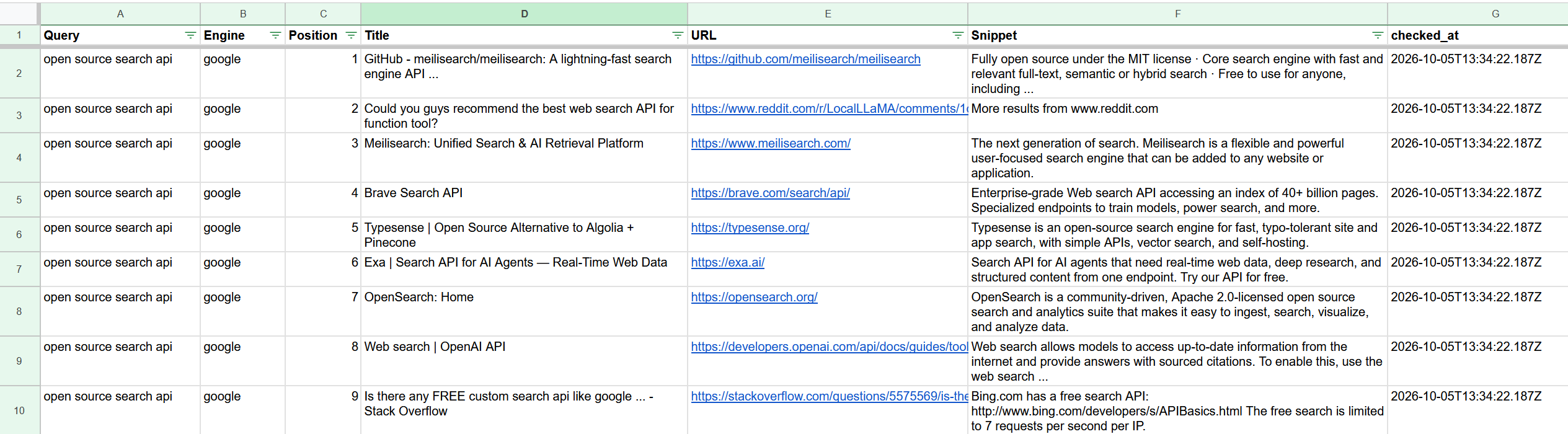
Looking for a way to turn a list of search queries into a spreadsheet of Google search results? In this article we will build step-by-step a workflow that uses OpenSERP Cloud to retrieve results and n8n to append them to Google Sheets. Each row includes the query, engine, position, title, URL, snippet, and processing timestamp.
The example processes three queries with a limit of ten results per query. Our demonstration returned 29 rows; actual results and counts can vary.
What you need
- An n8n instance with HTTP Request, Code, and Google Sheets nodes.
- An OpenSERP Cloud API key: Get an OpenSERP Cloud API key
- A Google account with permission to edit your spreadsheet.
- Download the workflow JSON.
1. Create the destination spreadsheet
Create a Google spreadsheet and name its sheet Results. Set the column headers in the first row as follows:
| A | B | C | D | E | F | G |
|---|---|---|---|---|---|---|
Query |
Engine |
Position |
Title |
URL |
Snippet |
checked_at |
Keep these names and capitalization unchanged: automatic mapping matches incoming fields to the sheet headers. Optionally freeze the header row, enable filters, and wrap the Title and Snippet columns.
2. Import the workflow
Create an empty workflow in n8n. Open the workflow menu and choose Import from File, then select the downloaded JSON file.
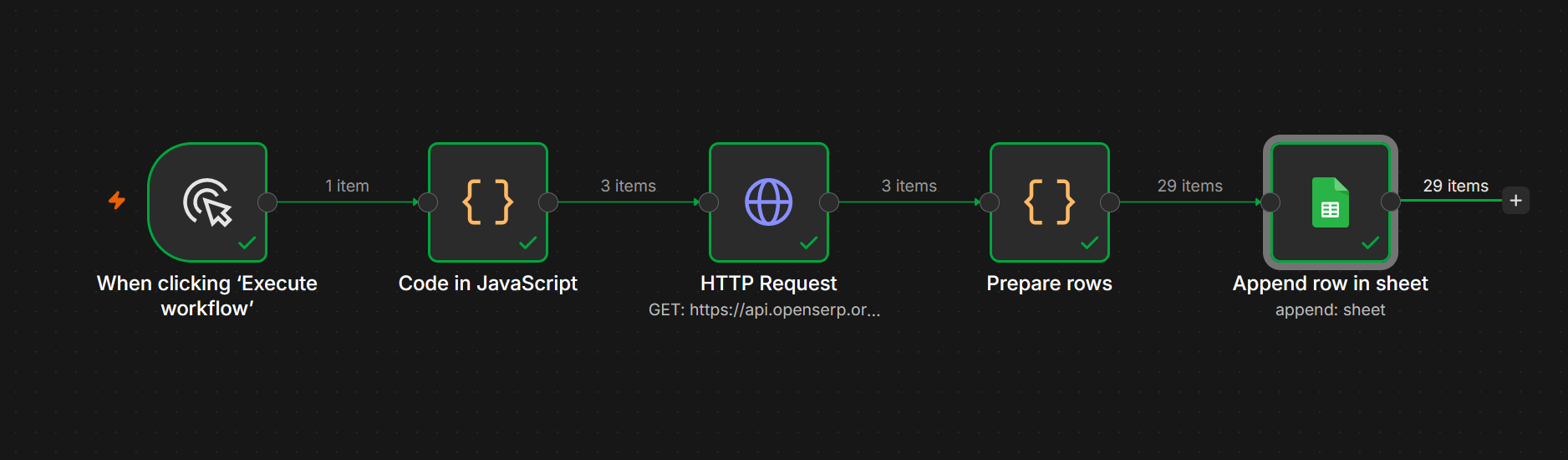
The workflow contains five nodes: a manual trigger, a query list, an HTTP Request, Prepare rows, and a Google Sheets append operation. No OpenSERP community node installation is required.
3. Connect OpenSERP Cloud
Open HTTP Request. Authentication is Generic Credential Type, with Bearer Auth. Create or select a Bearer Auth credential and paste your OpenSERP API key into the token field, without the word Bearer.
The imported HTTP Request node already includes these settings:
| Setting | Value |
|---|---|
| Method | GET |
| URL | https://api.openserp.org/v1/google/search |
| Send Query Parameters | On |
Under Query Parameters, the values are:
| Name | Value | Input mode |
|---|---|---|
text |
{{ $json.query }} |
Expression |
limit |
10 |
Fixed |
The text expression takes the search query from each incoming item. The limit requests up to ten results per query.
Keep the API key in the credential rather than pasting it into the URL or node code. Searches consume OpenSERP Cloud credits according to your account pricing.
4. Connect Google Sheets
Open Append row in sheet and connect your Google account. Select your spreadsheet and the Results sheet.
After selecting the document and sheet, check Mapping Column Mode and choose Map Automatically. During our import test, selecting the destination reset this setting to manual mapping. You do not need to enter individual column expressions.
The template sets Options → Cell Format → Let n8n format (RAW). Keep this setting so search titles, snippets, and queries are stored as literal values rather than interpreted as spreadsheet formulas.
5. Set your queries
Open Code in JavaScript. Replace the example strings with your own queries, keeping this structure:
return [
  { json: { query: "open source search api" } },
  { json: { query: "web search for ai agents" } },
  { json: { query: "n8n search automation" } }
];
Keep this node’s name unchanged: Prepare rows references it as a fallback source for query text.
6. Run the workflow
Save the workflow and click Execute workflow. When all five nodes finish successfully, open the spreadsheet to see the appended rows.
Each execution adds a new batch. It does not replace previous results or deduplicate URLs. checked_at is the UTC timestamp generated when Prepare rows processes the batch; it is not the publication date of the source page.
Empty results and errors
An empty results array produces one row with the original query, Title set to No results found, and empty Position and URL fields.
A response without a results array stops Prepare rows with an English error identifying the query. HTTP failures stop the HTTP Request node under the template’s default error settings. Inspect its error details and check credentials for authentication errors, account credits for billing errors, or rate limits for throttling errors.
If no rows appear, check the selected sheet, header names, Map Automatically setting, and any pinned test data. Unpin mock responses before a live run.
Validation
The connected workflow completed a live search-to-spreadsheet run. Separate mock-data checks verified empty results and rejection of a response without a results array. The public JSON removes credential references and the personal spreadsheet destination. Users must reconnect their accounts and select their own destination after import. Compatibility across other n8n versions has not been tested.
Next steps
Use your own query list to collect sources for research, content planning, or search-result analysis. To run the same searches inside your application, use OpenSERP Cloud directly: OpenSERP Cloud